Rizm Start Guide
👋 Introduction
This manual explains the basic usage of Rizm.
Rizm is a tool that can freely change its shape according to your use case—such as project management or wiki creation—based on a configuration file called a Manifest.
Because it does not have a fixed schema, Rizm can flexibly support different purposes for each project, such as task management, development tracking, CRM, or inventory management.
📋 About Projects
❓ What Is a Project?
In Rizm, data and configuration (the Manifest) are managed on a per-project basis.
Each project is independent and can be used for different purposes (for example, a task management project or a CRM project).
🔃 Switching Projects
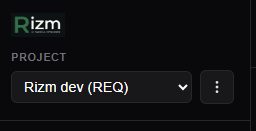
You can switch between existing projects using the project selector at the top of the sidebar.

Screenshot: Project selector at the top of the sidebar
👁️ Using Views
🔎 What Is a View?
A view allows you to display project data in different formats.
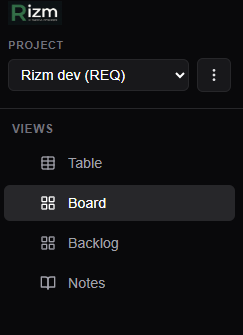
You can select available views from the Views section in the sidebar.
Screenshot: Views section in the sidebar
🗂️ Table View
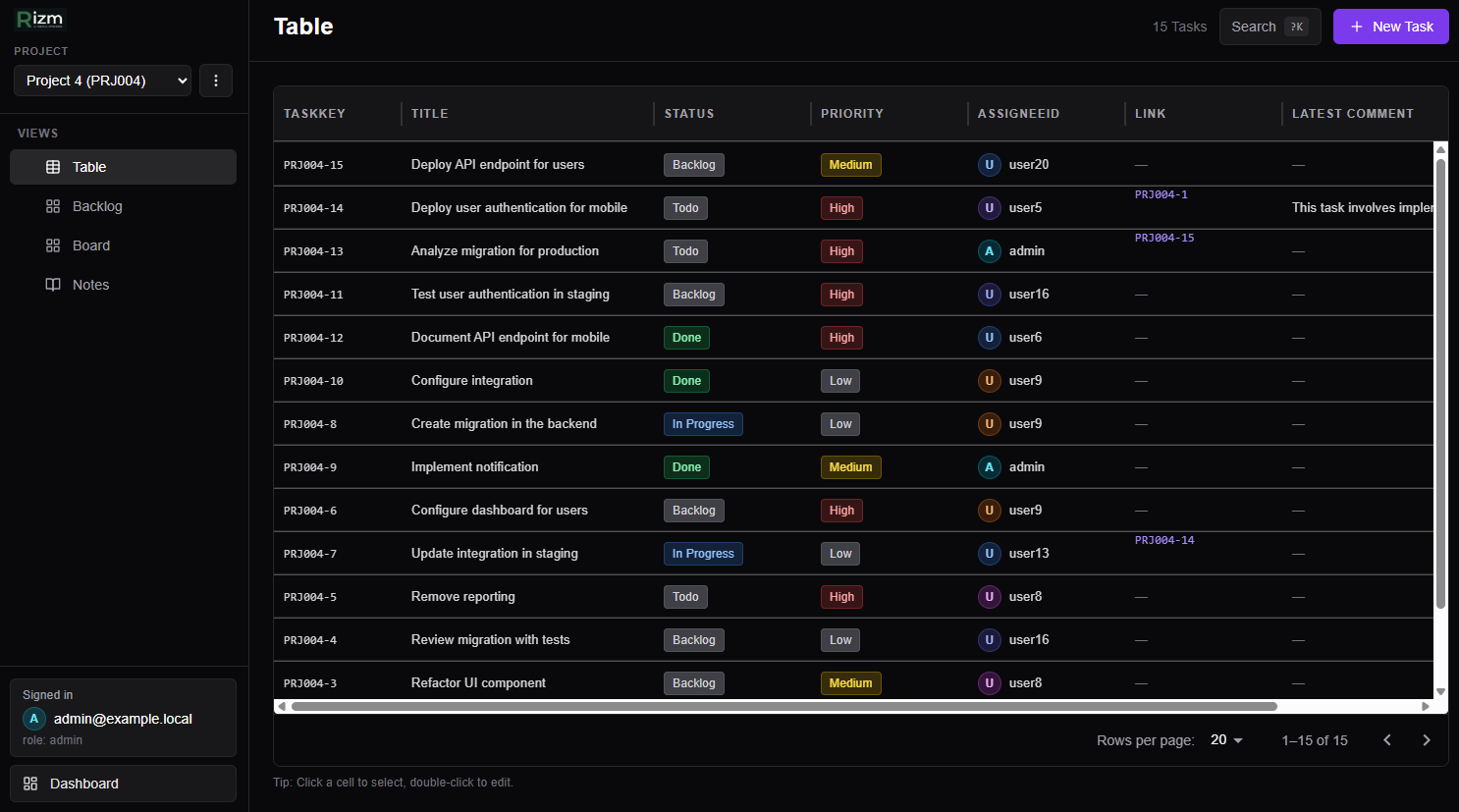
The table view displays data in rows and columns.
When you click a row, a detail panel opens on the right, allowing you to edit the data.
Screenshot: Table view example
📜 Board View (Kanban)
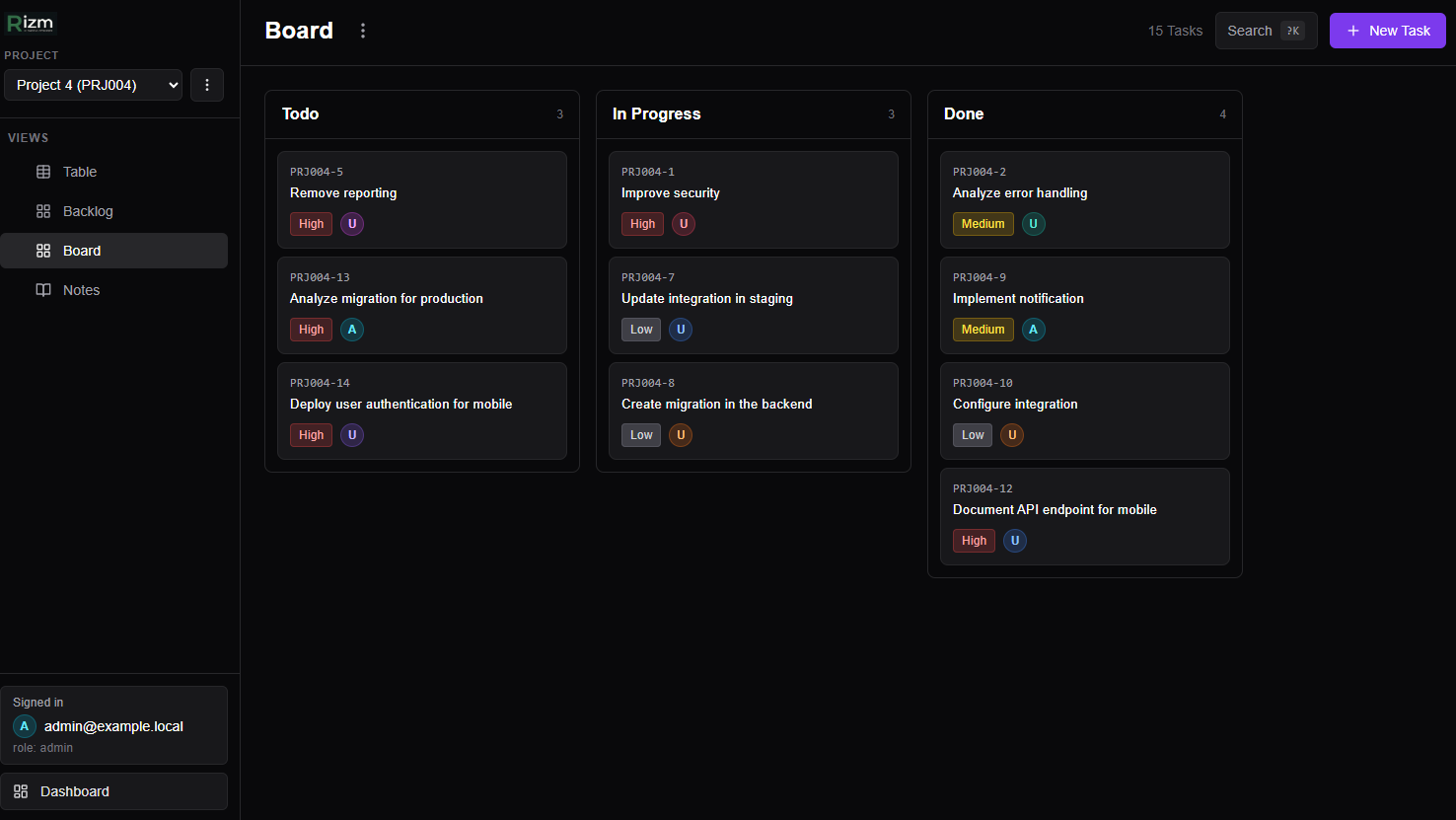
The board view displays data in a Kanban-style layout.
You can drag and drop cards to move them between columns or reorder them within a column.
From the three-dot menu, you can open the settings to change the grouping field, reorder columns, or hide columns.
Screenshot: Board view example (Kanban style)
📃 Notes View
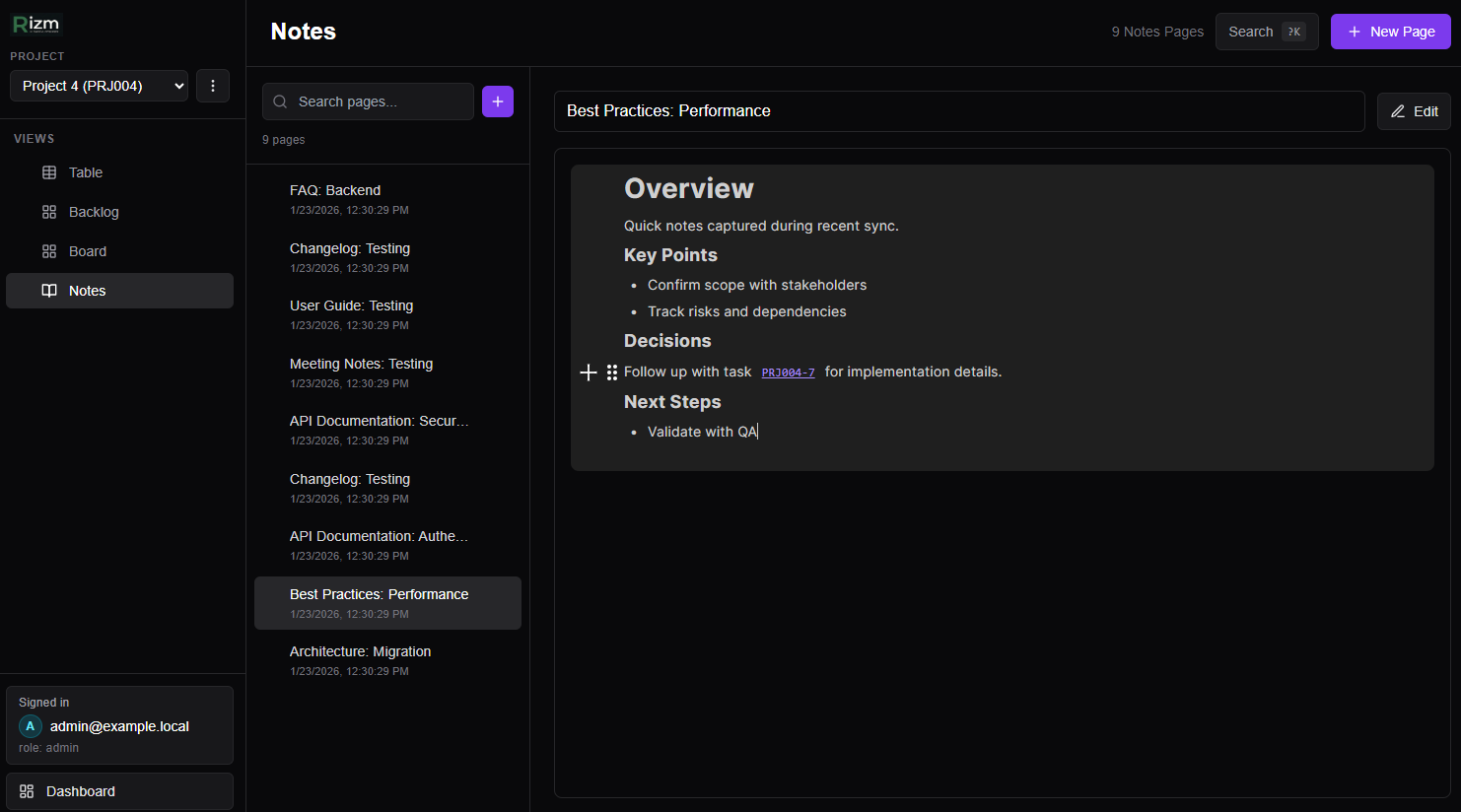
The notes view allows you to create and edit pages in rich text format.
You can create new pages from the page list and edit them in the editor. Pages can be reordered via drag and drop.
Additionally, when you write a task key or similar identifier in the text, it is recognized as a link to the corresponding entity.
Screenshot: Notesi view example (page list and editor)
🤖 AI Transform Feature
💡 What Is AI Transform?
AI Transform is a feature that automatically generates or modifies the project structure (Manifest) based on natural language instructions.
For example, by instructing “Transform to CRM,” the structure will be changed to one suitable for customer management.
✍️ How to Give Instructions in Text
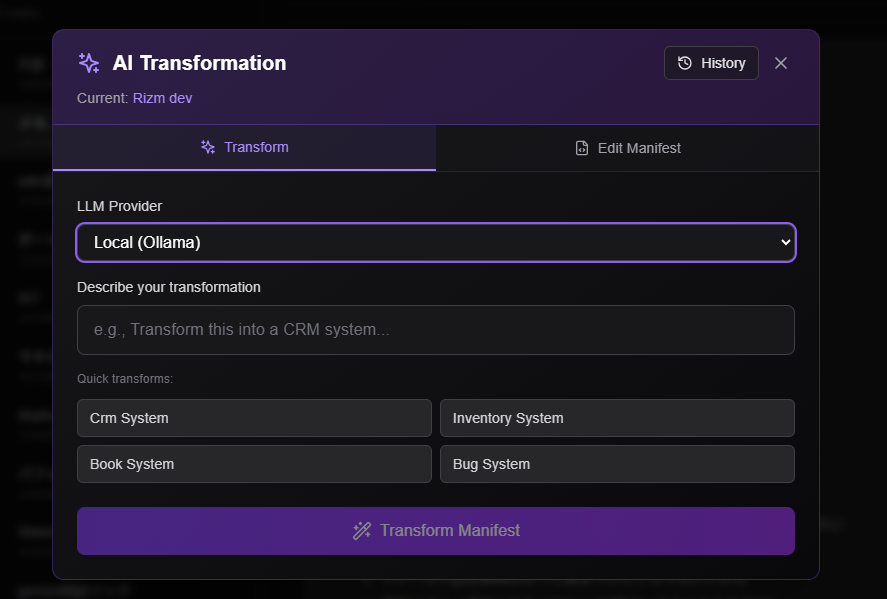
Click the AI Transform button at the bottom left of the screen to open the transformation dialog.
Enter your instructions in natural language in the text input field.。
Examples:
“Transform to CRM”
“Make this inventory tracker”
“Convert to bug tracker”
“Add a backlog view”
(This creates a view for backlog management. When there is only one column, it switches to a display mode that uses the full width.)
Screenshot: Location of the AI Transform button and dialog
✏️ Editing in the Editor
The Manifest generated by AI Transform can also be edited directly.
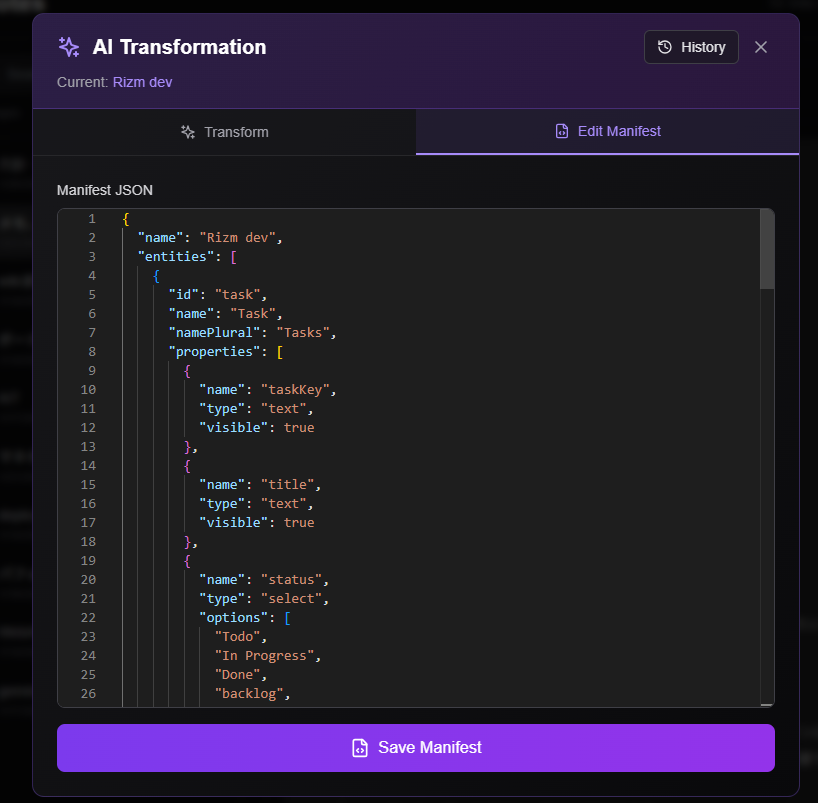
Open the Editor tab in the transformation dialog to view and edit the Manifest in JSON format.
Screenshot: Editor tab in the AI Transform dialog